
Team Members & Access
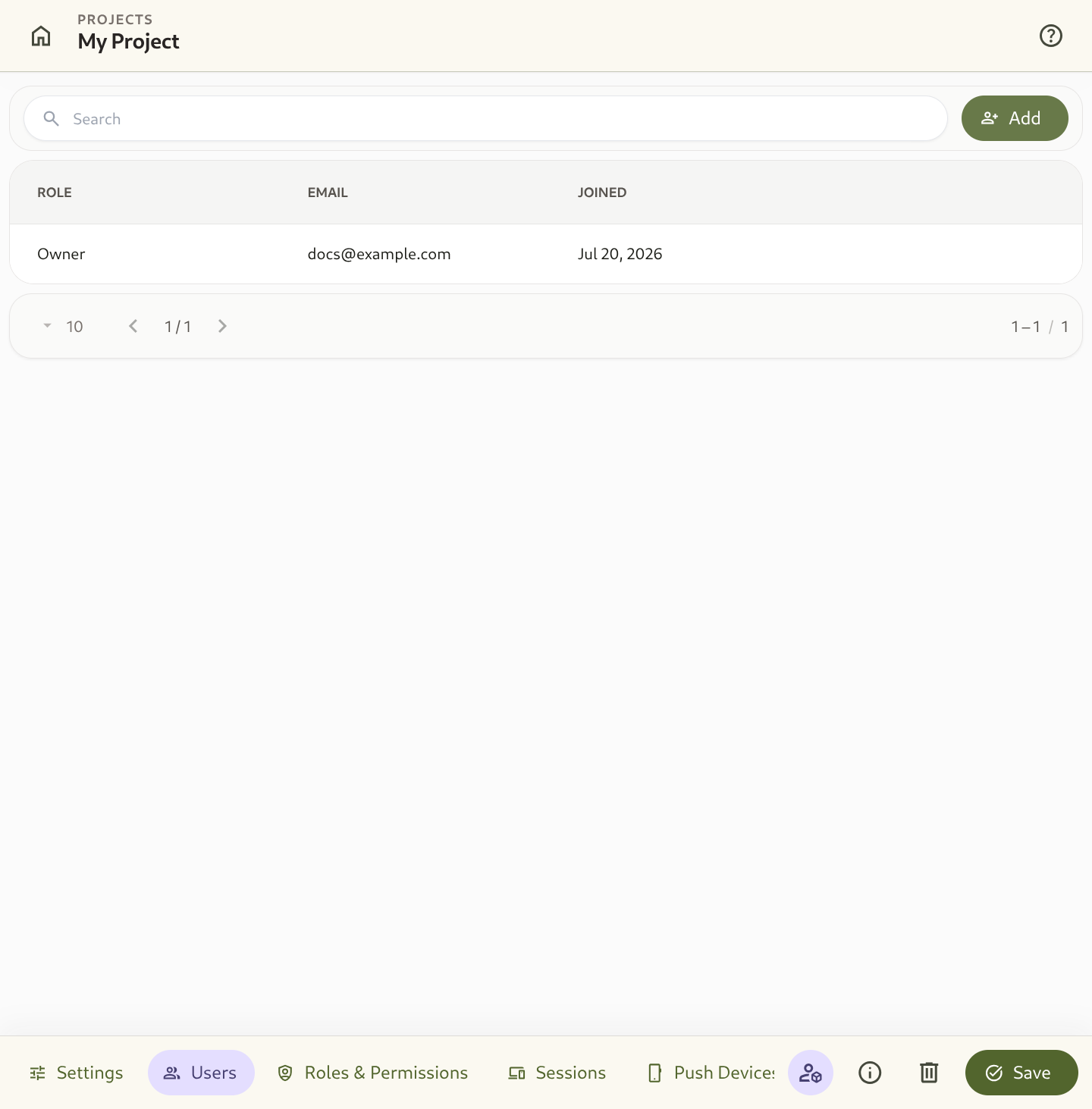
The Users tab (/project/library/:id/users) manages all collaborators who have access to a specific project workspace.
1. Inviting Team Members
Section titled “1. Inviting Team Members”Project owners and administrators can invite new collaborators to join the workspace:
- Navigate to Project Settings → Users.
- Click the + Add button in the top control bar.
- In the invite dialog, specify:
- User Email: The email address of the team member.
- Assigned Role: Select the role granting appropriate permissions (e.g. Owner, Admin, Editor, Viewer, or a custom role).
- Click Invite / Add to send the invitation.
2. Managing Member Permissions
Section titled “2. Managing Member Permissions”The team members table displays key collaborator details:
| Column | Description |
|---|---|
| Role | The assigned workspace role governing data modeling, entity operations, automations, and settings access. |
| User Email | The verified email identifier of the collaborator (e.g. [email protected]). |
| Joined Date | The date when the user accepted the invitation and joined the project. |
| Actions | Manage access or remove users from the workspace. |
3. Member Offboarding & Revocation
Section titled “3. Member Offboarding & Revocation”To revoke a team member’s access:
- Locate the collaborator in the members list.
- Click the Remove User button on the right side of their row.
- Confirm the removal prompt.
- The user immediately loses access to the project workspace and cannot query its API endpoints or view its entities.