
Notification Channels
Notification Channels serve as reusable delivery endpoints for automation rules. Once configured, multiple automations can send alerts through the same channel. A Webhook channel also serves as the connection for an automation’s HTTP Request action, which calls an external API and can keep parts of its response on a record.
1. Supported Channel Types
Section titled “1. Supported Channel Types”| Channel Type | Credentials / Setup Requirements | Description & Capabilities |
|---|---|---|
| Telegram | Bot Token | Sends formatted markdown messages to Telegram groups, channels, or private chats via a Telegram bot. |
| Webhook | Base/Target URL + Auth (None, Bearer Token, Basic Auth) + Custom Headers | Delivers HTTP requests (POST, PUT, PATCH, GET, DELETE) to external APIs, Zapier or n8n. Also the base URL and credentials for HTTP Request actions. |
| Push Notification | Channel Name only (Zero Credentials) | Delivers native Android mobile push notifications via Firebase Cloud Messaging to team members’ registered mobile devices. |
2. Managing Notification Channels
Section titled “2. Managing Notification Channels”- Navigate to Automation → Notification Channels (or open Channel Settings from an Automation detail page).
- Click + Create Channel.
- Select Type:
- For Telegram: Enter your Bot Token (from Telegram
@BotFather). - For Webhook:
- Base/Target URL: Enter destination URL (e.g.
https://api.example.comor full webhook URL). - Authorization Type: Select
None,Bearer Token(Authorization: Bearer <token>), orBasic Auth(Authorization: Basic <base64(user:pass)>). - Custom Headers: Define reusable key-value HTTP headers applied to all requests on this channel (e.g.,
X-API-Key,X-System-Source).
- Base/Target URL: Enter destination URL (e.g.
- For Push: Enter a channel name. Members who install and log into the Omnismith Android app are automatically registered to receive notifications.
- For Telegram: Enter your Bot Token (from Telegram
- Rate limit: the most messages the channel sends per minute (1–1000, default 20). See the Rate limit note below.
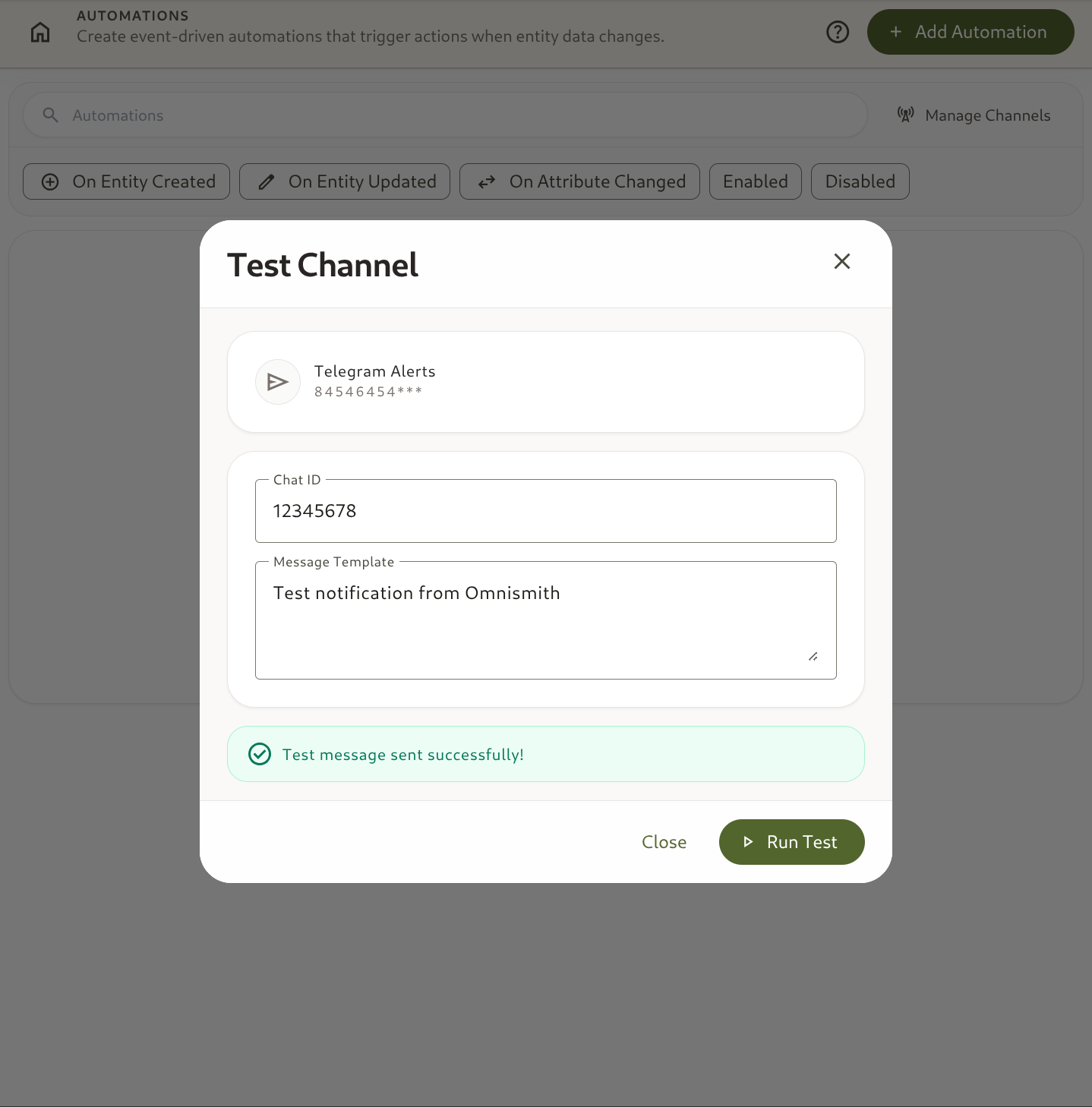
- Click Run Test to verify endpoint connectivity.
- Click Save Channel.
3. Mobile Push Device Registration
Section titled “3. Mobile Push Device Registration”Native Android device registration requires no manual API keys:
- Team members download and install the Omnismith Android application.
- Upon logging into the project, the app registers the device token with Firebase Cloud Messaging (FCM).
- In automation rules targeting a Push Channel, you can select specific project member accounts to receive the push notification.