
Actions
An Action is a named, template-scoped operation on one record: a precondition that gates when it can run, the fields it asks the operator for, and the presets it writes silently. Running an action is a single atomic write — a status transition, for example, is nothing more than a precondition on the current status plus a preset for the new one. There is no separate state-machine concept in Omnismith; a status transition is an Action.
Where Rules keep every record valid no matter how it’s written, Actions are the controlled, named way operators and agents make a change — so a business process doesn’t have to rely on someone editing the right field to the right value by hand.
1. Anatomy of an Action
Section titled “1. Anatomy of an Action”- Name: shown wherever the action appears (e.g.
Resolve incident). - Description: optional, shown alongside the name.
- Slug: the identifier used in the API and by agents — lowercase letters, digits, and underscores.
- Icon: an optional Material icon name shown next to the action.
- Available When (precondition): a list of predicates every one of which must hold against the record’s current values for the action to run. Leave it empty for an action that’s always available.
- Ask For (fields): an ordered list of attributes the operator fills in, each optionally marked required, with an optional hint.
- Set Silently (presets): values written automatically when the action runs. An attribute cannot be both asked for and set silently by the same action.
Preconditions share the same operator vocabulary as Rules: equals / not equals, greater than / at least / less than / at most, contains / not contains, is one of, and is empty / is not empty.
2. Defining an Action
Section titled “2. Defining an Action”Actions live in the template editor’s Actions tab, next to the Rules tab. The template editor itself is documented in Templates. Like rules, an action is saved as soon as you click Save in its dialog, and a template you are still creating has no Actions tab until you save it.
- Navigate to Blueprints → Template Library and open the template (e.g.
Incident). - Open the Actions tab and click Add action.
- Under General, set the Name, an optional Description, the Slug, and an optional Icon.
- Under Available When, add the precondition.
- Under Ask For, add the fields the operator fills in, in order, marking each Required as needed with an optional Hint.
- Under Set Silently, add the presets.
- Check the Preview pane as you go — it renders exactly what the operator will see when running the action.
- Click Save.
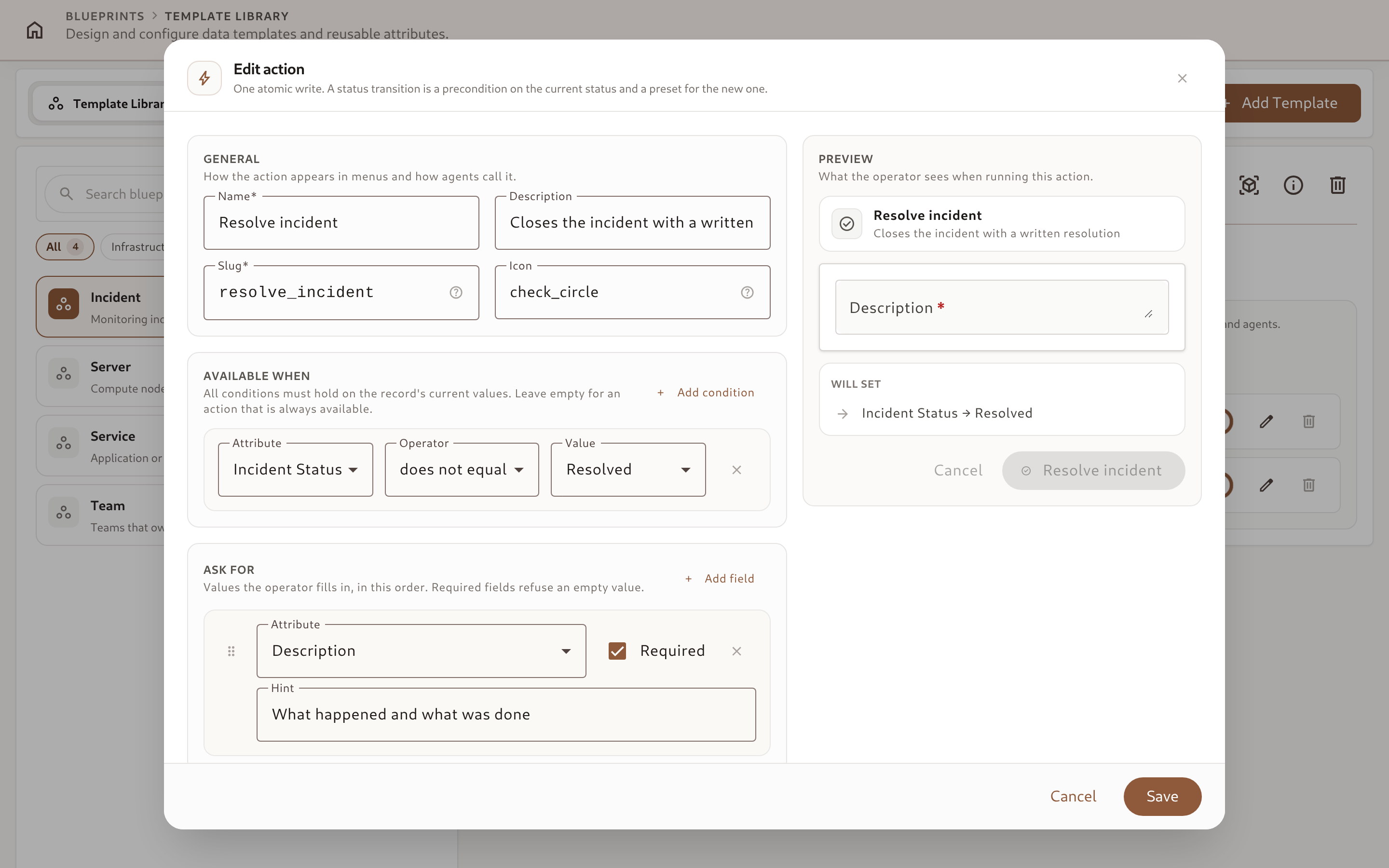
This is the Incident template’s Resolve incident action from the Server Monitoring blueprint: it’s available whenever the incident isn’t already Resolved, asks for a Description of what happened and what was done, and silently sets Incident Status to Resolved. Its sibling action, Start investigation, has no fields at all — it’s available only when Incident Status is Open, and its only effect is setting the status to Investigating.
Fields and presets can only reference the template’s own dimensions, lists, and references — never a metric attribute, since an action performs one dimensional write, not a telemetry ingest.