
Automations Workflow
Automations run your operational rules without anyone watching. An automation can react to records being created or changed, run on a schedule, fire when a date is reached, or fire when a record has gone quiet. When it fires, it can send a notification, change records, run a template Action, or call an external API and keep parts of the answer.
Follow-up, SLA, renewal and escalation flows (“no reply within 24 hours”, “contract expires in 30 days”, “ticket still open after 2 hours”) run inside your project. You don’t need an external scheduler.
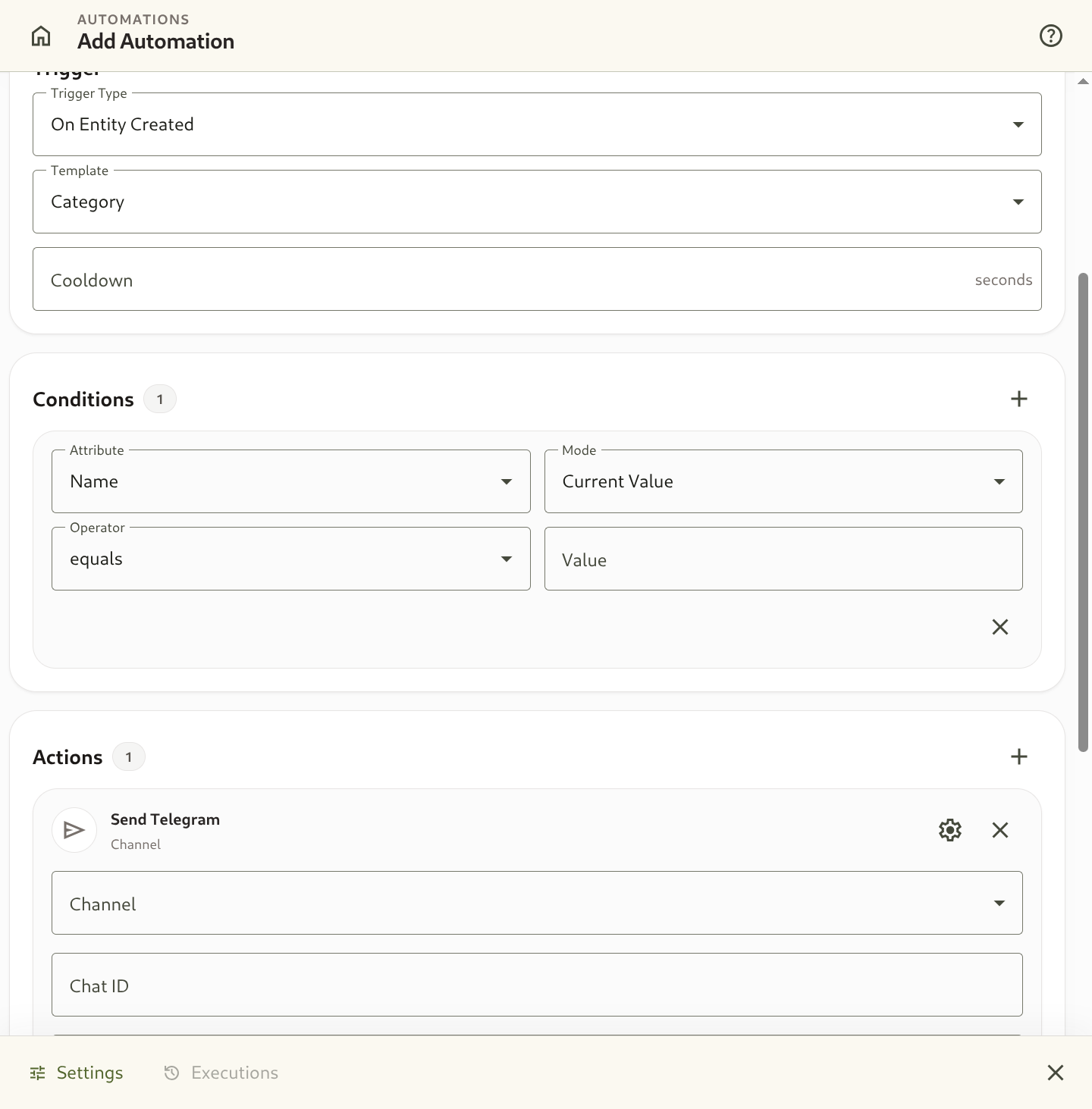
1. How an Automation Works: Trigger → Conditions → Actions
Section titled “1. How an Automation Works: Trigger → Conditions → Actions”Every automation has three parts:
flowchart LR A["Trigger\n(record event, schedule,\ndate reached, no change)"] --> B["Conditions\n(e.g. Status equals Open)"] B -->|All match| C["Actions, in order\n(notify · update or create a record ·\nrun an action · call an API)"]- The trigger decides when the automation is evaluated.
- The conditions decide whether this record qualifies. All of them must match (AND logic).
- The actions run one after another. Each one succeeds or fails on its own, and a failed action does not stop the ones after it.
2. Triggers
Section titled “2. Triggers”Event triggers
Section titled “Event triggers”Event triggers fire when someone or something writes to a record: the app, the REST API, a CSV import, an AI agent, or an Inbound Endpoint.
- On Entity Created: fires when a record of the chosen template is created. Leave the template empty to watch every template.
- On Entity Updated: fires whenever a record is modified.
- On Attribute Changed: fires when one specific attribute changes value, for example when
Statusmoves from Operational to Pre-Failure, or when a metric reading arrives. - On Action Executed: fires once per run of a specific Action on a template, regardless of who or what ran it. Use it to notify a channel whenever, say,
Resolve incidentcompletes.
Time-based triggers
Section titled “Time-based triggers”Time-based triggers fire because time passed, not because a record was written. Each one reads its times in an IANA timezone you choose (for example Europe/Berlin or UTC). A trigger set for 09:00 stays at local 09:00 across daylight-saving changes.
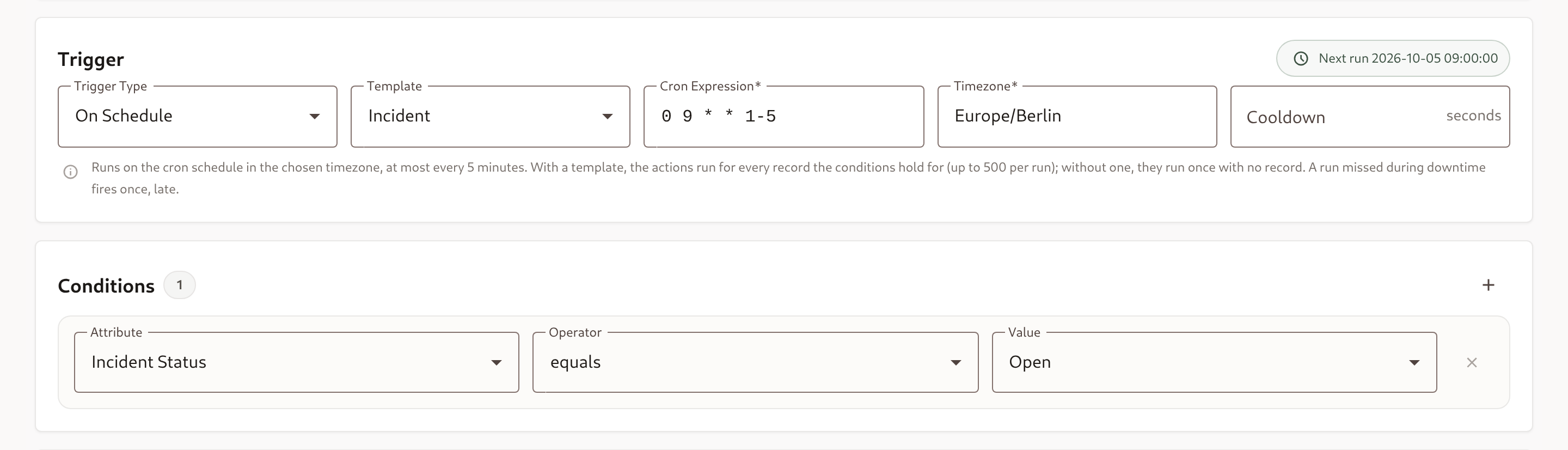
On Schedule
Section titled “On Schedule”Runs on a cron expression in the chosen timezone.
| Field | Meaning |
|---|---|
| Cron Expression | A standard 5-field expression: minute hour day-of-month month day-of-week. 0 9 * * 1-5 is 09:00 on weekdays; */15 * * * * is every 15 minutes. Macros such as @daily and seconds or year fields are not accepted. |
| Timezone | The timezone the expression is read in. |
| Template (optional) | With a template, the actions run once for every record the conditions hold for at that moment. Without one (No record (run once)), the actions run once with no record attached. |
- A schedule runs at most every 5 minutes. A faster expression is refused when you save.
- A schedule with a template handles up to 500 matching records per run. If more records match, the whole run is refused, nothing is written, and one failed execution reads Schedule matched N records; the limit is 500. Narrow the conditions. Nothing is silently truncated.
- A schedule without a template takes no conditions. Its actions cannot write to “the trigger record”, because there isn’t one; an HTTP request without a response mapping still works.
- A saved, enabled schedule shows its Next run time in the builder.
When Date Reached
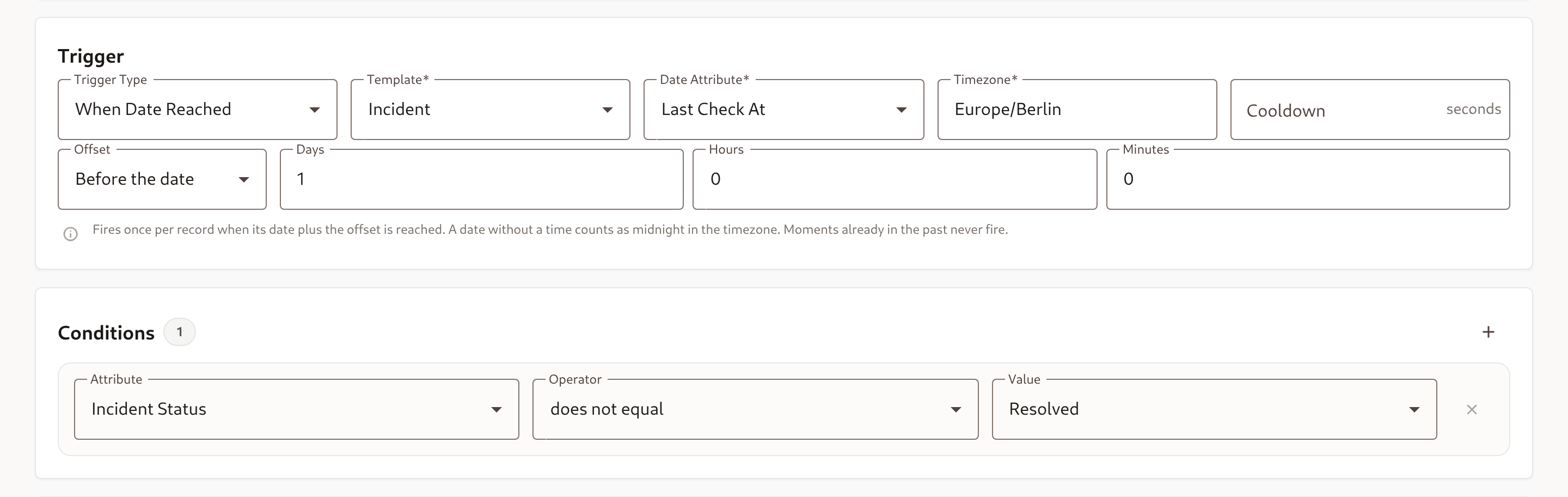
Section titled “When Date Reached”Fires once per record when a date or datetime attribute of that record, moved by an offset, is reached. Use it for renewal reminders, due-date warnings and follow-ups after a meeting.
| Field | Meaning |
|---|---|
| Template | The records to watch. |
| Date Attribute | A date or datetime attribute of that template. |
| Offset | Before the date or After the date, in days, hours and minutes, up to 366 days either way. Zero fires on the date itself. |
| Timezone | How a date without a time is read: it counts as midnight in this timezone. A datetime is used as stored. |
The offset is applied on the calendar: whole days first, then hours and minutes. To fire at 09:00 thirty days before a date-only value, choose Before the date with 29 days 15 hours: 30 days back to midnight, then 9 hours forward. The reminder lands at local 09:00 even if a daylight-saving change falls in between.
- When you save or enable the automation, every existing record with a future moment is scheduled.
- Setting, moving or clearing the date on a record reschedules or cancels its run.
- Moments already in the past never fire. Entering a date whose reminder time has passed does not trigger it retroactively.
No Change Within
Section titled “No Change Within”Fires when a watched attribute of a record has not changed for a set time while the conditions hold. Use it for “lead still New after 24 hours” or “no reply within 2 hours”.
| Field | Meaning |
|---|---|
| Template | The records to watch. |
| Watched Attribute | Any dimension, list or reference attribute, or Any update to watch the record itself (its Updated time). Metrics cannot be watched. |
| Unchanged for | 5 minutes to 90 days. |
Each record has its own clock:
- The clock starts when a record is created, and restarts whenever the watched attribute changes, but only while the conditions hold.
- With Any update, every save of the record restarts the clock, even one that changes no value. This is a heartbeat monitor: a server or job reports by updating its record, and the automation fires when the updates stop. Metric data points sent on their own do not count as an update.
- Any write after which the conditions no longer hold stops the clock. For example, a lead moves out of New.
- When the time runs out, the conditions are checked again on the record as it is now, and the automation fires once.
- Existing records are not picked up when you create the automation. A record’s clock starts with its next write.
- Editing the trigger or the conditions stops all running clocks; they start again with each record’s next write. Renaming the automation or editing its actions or cooldown keeps them running.
Conditions on time-based triggers
Section titled “Conditions on time-based triggers”A scheduled moment has no “previous value” to compare with. Time-based triggers therefore only take Current Value conditions, and the builder hides the mode selector for them. Conditions are always checked when the automation fires, against the record as it is then, not as it was when the run was scheduled.
Seeing what is scheduled
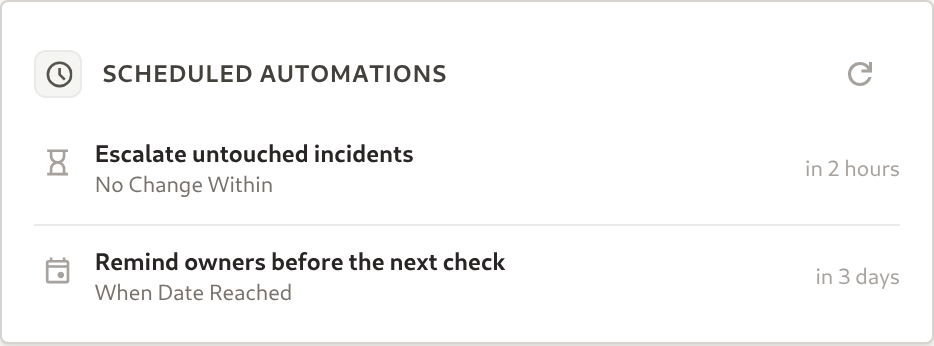
Section titled “Seeing what is scheduled”- On a record: the Scheduled Automations panel, under History in the record’s side rail, lists every pending date-reached and no-change run for that record, with its due time. It is visible to members with permission to view automations.
- On a schedule: the builder shows the Next run time.
- Through the API:
GET /automation/timers?entity_id=<record id>or?automation_id=<automation id>lists pending runs soonest first. Pass at least one of the two filters;limitis 1–500 (default 100). The MCP connector exposes the same list aslist_automation_timers.
3. Conditions
Section titled “3. Conditions”Conditions filter which records qualify. All of them must match.
- Operators:
equals,not equals,greater than,less than,greater or equal,less or equal,contains,not contains,is empty,is not empty. - Modes (event triggers only):
- Current Value: compare the value after the write.
- Change (Absolute): compare how far a number moved in either direction, e.g.
Temperaturechanged by more than 5. - Change (%): compare the relative move in either direction, e.g.
Pricechanged by more than 10%.
4. Actions
Section titled “4. Actions”An automation runs its actions in the order listed. Each action’s result is recorded separately in the execution log.
Notifications
Section titled “Notifications”- Send Telegram: sends a formatted message to a Telegram chat or group through a Telegram channel.
- Send Webhook: sends an HTTP request (
POST,PUT,PATCH,GET,DELETE) through a Webhook channel, with a URL path, query parameters and a JSON payload template. - Send Push Notification: notifies selected project members on their registered mobile devices.
Record actions
Section titled “Record actions”Record actions change your data directly. Before them, changing a record meant sending a webhook back to Omnismith’s own API.
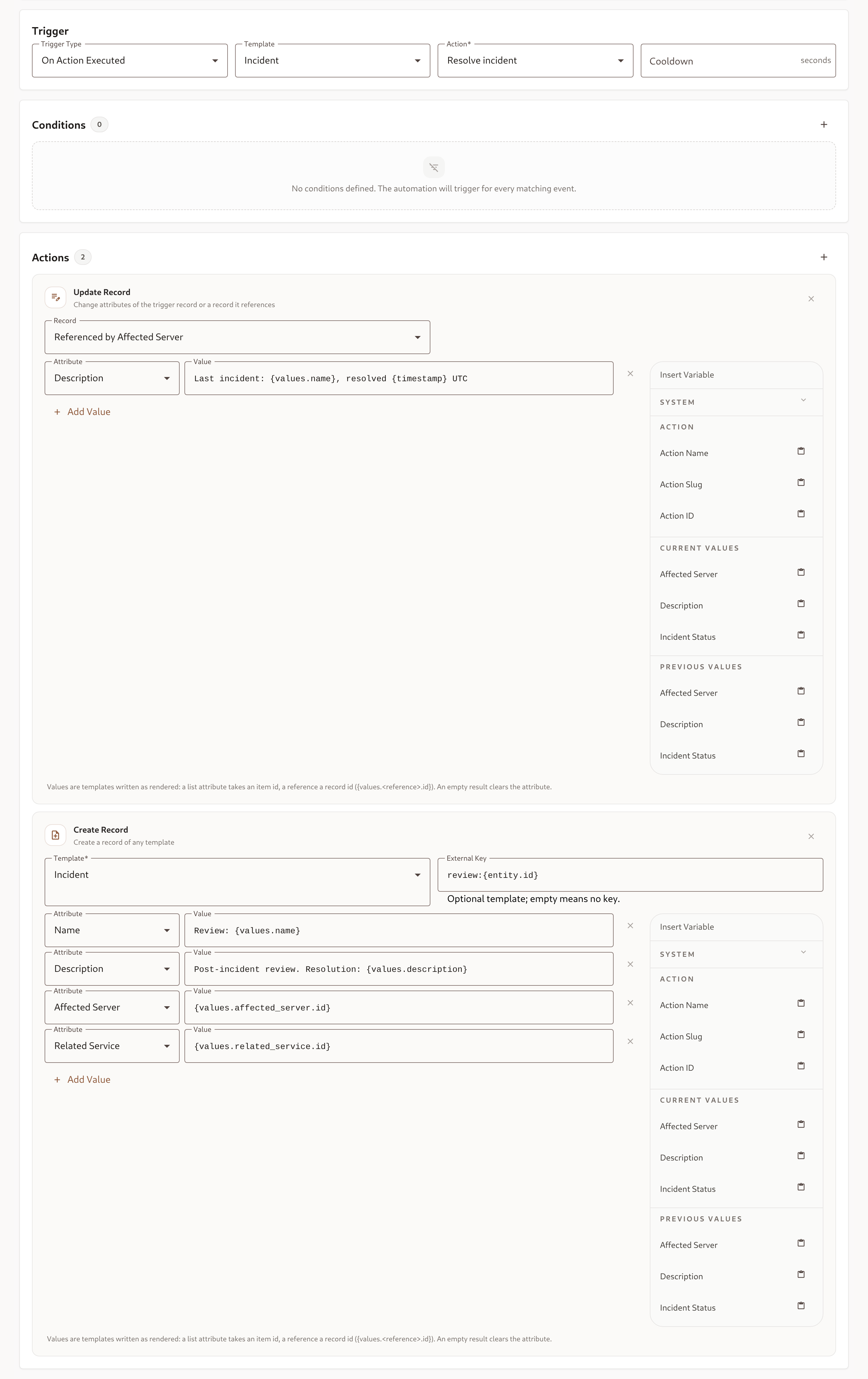
- Update Record: writes values to the trigger record, or to the record that one of its reference attributes points at (one hop, e.g. the incident’s Affected Server).
- Create Record: creates a record of any template, optionally with an External Key template such as
review:{entity.id}so it can be found again by key. If a live record already holds that key, the action fails. An empty key means the record gets none. - Run Action: runs one of the template’s named Actions on the trigger record or a referenced record. The action’s precondition, required fields and presets apply exactly as when a person runs it. You fill in only the action’s own fields.
Values are template strings, written as they render:
- A list attribute takes a list item id.
- A reference attribute takes a record id. Use
{values.<reference>.id}to copy a reference from the trigger record. - A value that renders empty clears the attribute.
HTTP Request with response mapping
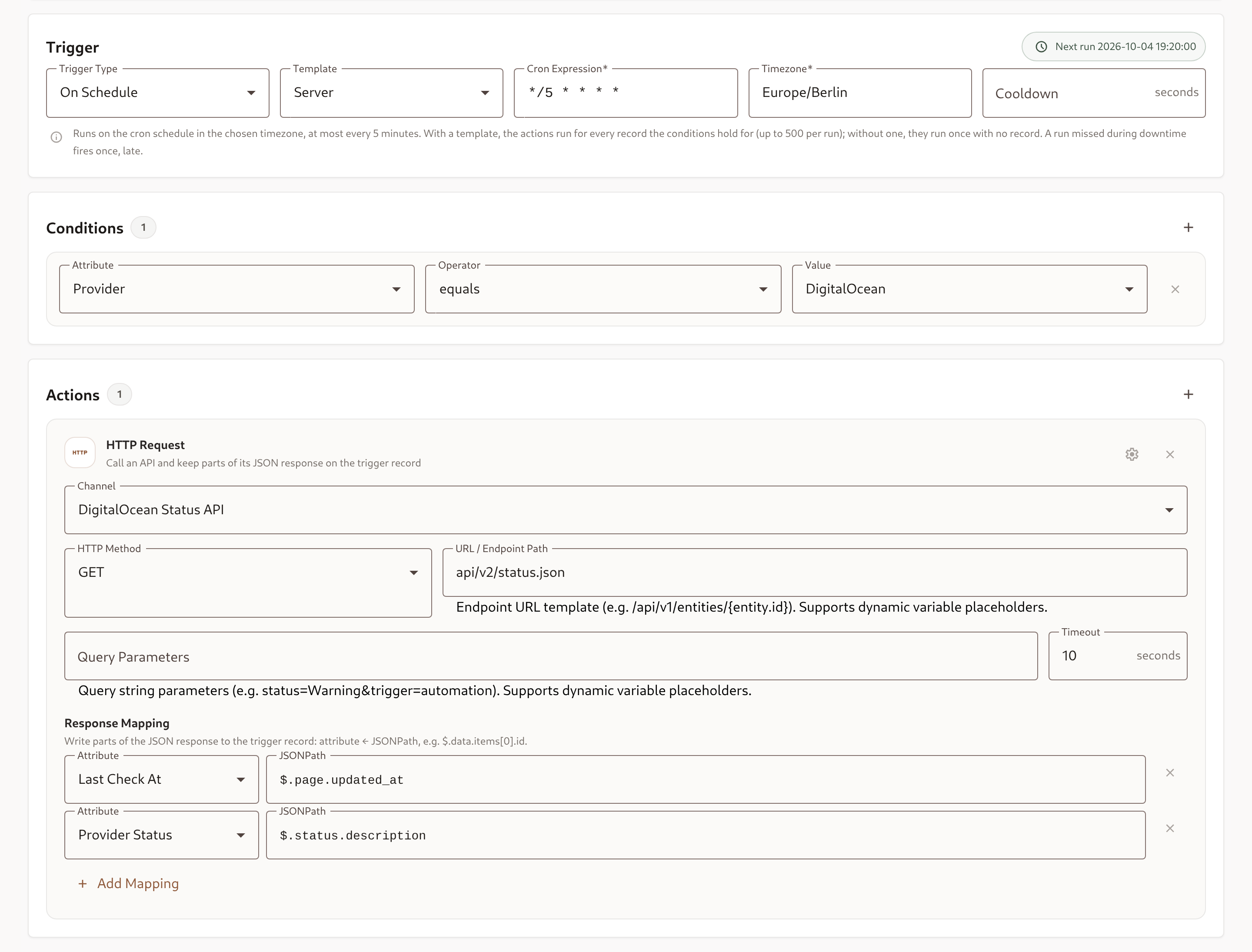
Section titled “HTTP Request with response mapping”HTTP Request calls an external API through a Webhook channel, which holds the base URL and credentials. It can then keep parts of the JSON response on the trigger record.
| Field | Meaning |
|---|---|
| Channel | A Webhook channel. Its base URL, authorization and custom headers are used. |
| HTTP Method, URL / Endpoint Path, Query Parameters, Payload Template | As for Send Webhook. All take template variables. |
| Timeout | 1–30 seconds (default 10). |
| Response Mapping | Up to 50 rows of attribute ← JSONPath, e.g. Company Size ← $.company.employees. Mapped attributes must belong to the trigger’s template. |
How the response is handled:
- Any status outside
2xx, no response, or a response over 1 MB fails the action. - With a mapping, the response must be JSON and every path must resolve. Otherwise the action fails and writes nothing.
- Numbers, text and dates are written as their text value. Booleans become
trueorfalse, and JSONnullclears the attribute. Objects and arrays can only go into text or markdown attributes. - All mapped values are written in one update, through the template’s Rules.
Each run records the HTTP status, the attributes written and the start of the response, so a failed lookup can be diagnosed from the execution log.
How record writes behave
Section titled “How record writes behave”Every write an automation makes, whether from Update Record, Create Record, Run Action or HTTP Request, follows the same path as a write from the app:
- Rules apply. A write that would break a template Rule is refused and recorded as a failed action. The record is left untouched.
- The automation is the author. History and the audit log show Automation · {name} as the author, not the person who built it.
- Saving needs write access. You can only save an automation whose record actions write to templates you are allowed to create or edit records in.
- Config mistakes are caught on save. For example, an attribute that isn’t on the target template, an action slug the template doesn’t have, or a reference target that isn’t a reference attribute. The error names the field.
Template variables
Section titled “Template variables”Message, payload, URL, value and key templates accept these variables:
| Variable | Value |
|---|---|
{automation.id}, {automation.name} | The automation. |
{entity.id}, {entity.template_id}, {entity.external_key} | The trigger record. Empty for a schedule run without a record. |
{action.id}, {action.slug}, {action.name} | The entity action that ran (On Action Executed). |
{values.<attribute>} | The record’s current value, by attribute slug or id. List and reference values render as their labels. |
{values.<reference>.id} | The id of the record a reference attribute points at. |
{values.<reference>.<attribute>} | A value of the referenced record, one hop deep. |
{previous.<attribute>} | The value before the write (event triggers only). |
{timestamp} | The event time in UTC, formatted YYYY-MM-DD HH:MM:SS. For a time-based trigger, it is the scheduled moment rather than the moment it actually ran. Written to a date or datetime attribute (for example "last_check_at": "{timestamp}"), it is stored as that UTC moment, e.g. 2026-10-04T17:14:08+00:00. |
5. Step-by-Step Automation Setup
Section titled “5. Step-by-Step Automation Setup”- Open Automations from the launcher or from the project’s Automations tab, and click Add Automation.
- General: enter a name (e.g.
Escalate untouched incidents) and an optional description. - Trigger: choose the trigger type, then fill in its fields: template, attribute, cron and timezone, offset, or delay. A hint under the trigger explains how the chosen type behaves.
- Cooldown (optional): the minimum time between two runs for the same record, counted from the moment the automation last fired for it. A burst of updates to one record, such as a batch of metric readings, fires the automation once within the window.
- Conditions: add the conditions a record must meet, e.g.
Incident Status equals Open. - Actions: click + and pick an action type. Use Insert Variable to add template variables into the field you are editing.
- Click Save. If something cannot run, the error is shown under the trigger, the conditions or the action concerned.
6. Timing and Reliability
Section titled “6. Timing and Reliability”- Precision: time-based automations fire within about a minute of their due time.
- Downtime: a run that came due while processing was paused fires once, late. It is not repeated for every missed slot. The execution log shows the due time and how late it fired; a schedule then continues with its next future slot.
- Past dates never fire: When Date Reached only schedules moments still in the future.
- No backfill: No Change Within only watches records written after the automation exists.
- Cooldown: applies to every trigger type, per record. A record-less schedule run has no record, so cooldown does not apply to it.
- Limits: schedules run at most every 5 minutes and handle up to 500 records per run. No Change Within delays are 5 minutes to 90 days; When Date Reached offsets are up to 366 days.
- Lifecycle: disabling or deleting an automation cancels everything it has pending. Deleting a record cancels that record’s pending runs. Re-enabling reschedules schedules and date-reached runs; no-change clocks restart with each record’s next write.
7. How Automations Affect Each Other
Section titled “7. How Automations Affect Each Other”Automations can write records, so Omnismith keeps them from setting each other off endlessly:
- Writes made by an automation follow Rules like any other write.
- They never fire event-based automations: On Entity Created, On Entity Updated, On Attribute Changed and On Action Executed ignore writes made by automations.
- They do start other automations’ date and no-change timers. If automation A creates a Contract with an end date, automation B’s “30 days before end date” reminder is scheduled for it.
- An automation’s own writes never restart its own timers. If A changes the very value its own timer was waiting on, that pending run is dropped.
- Two automations that keep resetting each other’s timers repeat at their delay interval. The execution log shows the repeated runs, and disabling either automation stops the cycle.
Safety: private networks are blocked
Section titled “Safety: private networks are blocked”Send Webhook, HTTP Request and the Webhook channel test refuse to call private or internal network addresses, such as localhost, 10.x.x.x, 192.168.x.x and link-local ranges. A blocked call fails with Target resolves to a private network address. Expose internal services through a public, authenticated URL instead.
8. Execution Logs & Monitoring
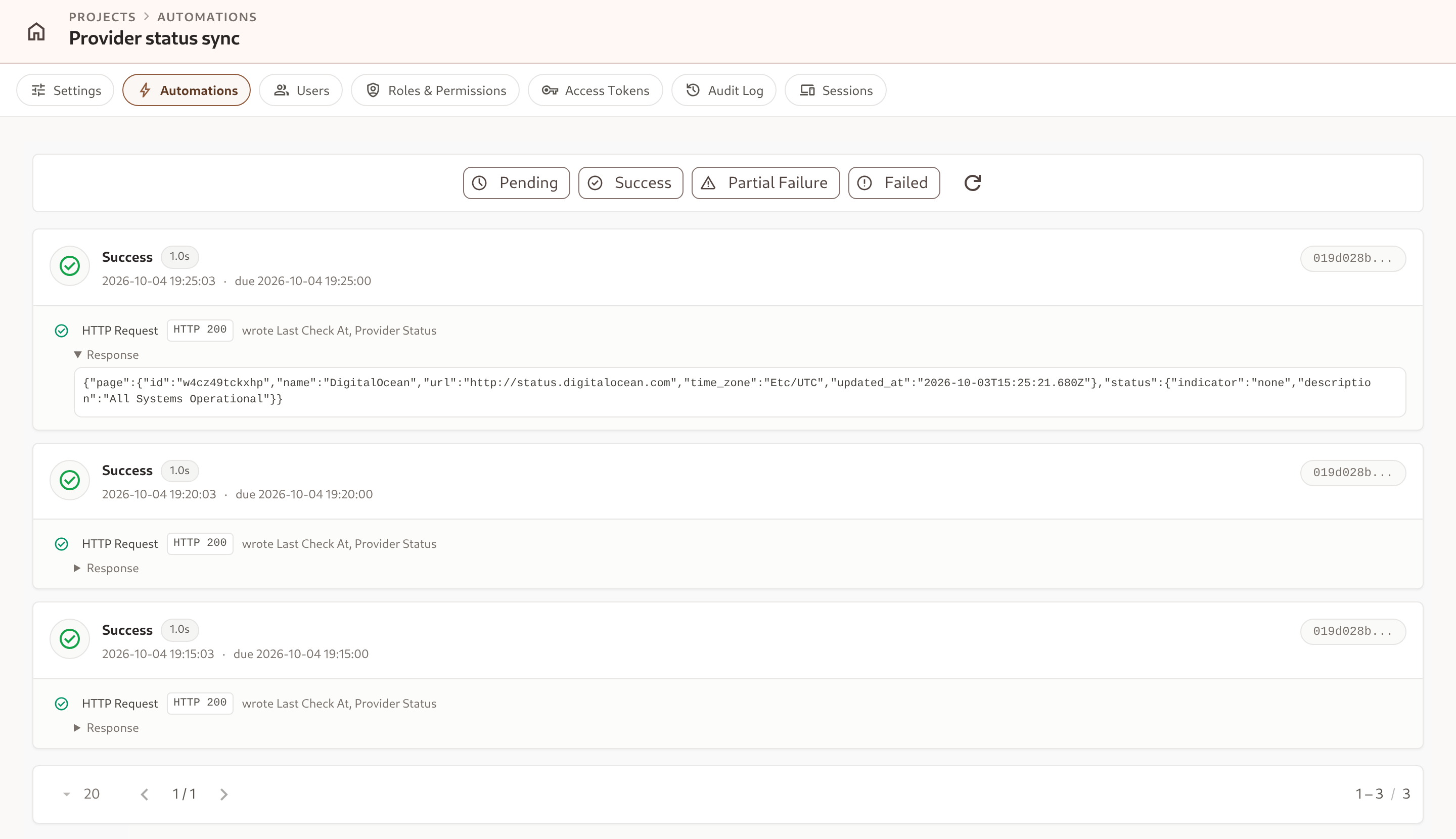
Section titled “8. Execution Logs & Monitoring”The Executions tab of an automation lists every run, newest first:
- Status: Success, Failed (no action succeeded, or the run was refused, as with the 500-record schedule limit), Partial Failure (some actions succeeded, others failed), or Pending (still running).
- Timing: when the run started and, for time-based triggers, when it was due. A run more than a minute late is marked fired N min late.
- Record: a link to the trigger record, or No record for a schedule without a template.
- Per action: the action type and its outcome. A failure shows the reason, e.g. a rule violation naming the field, a failed precondition, or
Webhook returned HTTP status 500. An HTTP Request also shows its status code, the attributes it wrote, and a collapsible excerpt of the response.
Executions are also available through the API (GET /automation/automations/{id}/executions) and the MCP tool list_automation_executions.
9. Worked Examples
Section titled “9. Worked Examples”The examples below use the REST API (POST https://api.omnismith.io/v1/automation/automations, with Authorization: Bearer <token> and X-Omnismith-Project-Id). Every setting has an equivalent field in the builder. Trigger ids (templateId, attributeId, actionId) and condition attributeIds are ids. Action configs also accept attribute and template slugs.
Overdue follow-up: no change within 24 hours
Section titled “Overdue follow-up: no change within 24 hours”A lead that sits in New for a day is flagged to the sales chat and moved to Needs follow-up through the template’s own action.
{ "name": "Lead untouched for 24 hours", "trigger": { "type": "no_change_within", "templateId": "<lead template id>", "attributeId": "<status attribute id>", "delayMinutes": 1440 }, "conditions": [ { "attributeId": "<status attribute id>", "operator": "eq", "value": "<'New' list item id>", "mode": "current" } ], "actions": [ { "type": "telegram", "config": { "channel_id": "<telegram channel id>", "chat_id": "-1001234567890", "message_template": "⏰ {values.company} has been New for 24 hours. Owner: {values.owner}" } }, { "type": "run_entity_action", "config": { "target": { "kind": "trigger_entity" }, "action_slug": "flag_for_follow_up" } } ]}Any status change restarts or stops the clock, so only leads that are still New after a full day are flagged.
Heartbeat: a server silent for 15 minutes
Section titled “Heartbeat: a server silent for 15 minutes”Each server’s agent updates its record on every check. Leaving out attributeId watches the record itself, so any update restarts the clock, and the chat hears about a server that stopped reporting.
{ "name": "Server stopped reporting", "trigger": { "type": "no_change_within", "templateId": "<server template id>", "delayMinutes": 15 }, "conditions": [], "actions": [ { "type": "telegram", "config": { "channel_id": "<telegram channel id>", "chat_id": "-1001234567890", "message_template": "🔴 {values.hostname} has not reported for 15 minutes." } } ]}Renewal reminder: create the contract, then remind 30 days before it ends
Section titled “Renewal reminder: create the contract, then remind 30 days before it ends”Two automations hand off through the record they create:
-
When a deal is won, create its contract. Trigger On Action Executed for the deal’s
mark_wonaction, with a Create Record action:{"type": "create_entity","config": {"template_id": "contract","external_key": "deal:{entity.id}","values": {"title": "{values.title}","customer": "{values.customer.id}","end_date": "{values.contract_end}"}}} -
Remind the account owner at 09:00, 30 days before the end date.
{"name": "Contract renewal reminder","trigger": {"type": "date_reached","templateId": "<contract template id>","attributeId": "<end_date attribute id>","offsetMinutes": -42660,"timezone": "Europe/Berlin"},"conditions": [],"actions": [{"type": "telegram","config": {"channel_id": "<telegram channel id>","chat_id": "-1001234567890","message_template": "📄 {values.title} for {values.customer} ends on {values.end_date}. Time to talk renewal."}}]}
-42660 minutes is 29 days 15 hours before: 09:00 local time, thirty days before a date-only end date. The contract is created by an automation, yet the second automation’s reminder is still scheduled for it: automation writes start other automations’ date timers.
Enrichment lookup: call an API when a record is created
Section titled “Enrichment lookup: call an API when a record is created”When a new lead arrives, look its domain up in an enrichment service and keep two fields of the answer. The Webhook channel holds the service’s base URL and its Bearer token.
{ "name": "Enrich new leads", "trigger": { "type": "on_entity_created", "templateId": "<lead template id>" }, "conditions": [ { "attributeId": "<domain attribute id>", "operator": "is_not_empty", "value": null, "mode": "current" } ], "actions": [ { "type": "http_request", "config": { "channel_id": "<enrichment webhook channel id>", "method": "GET", "url_template": "/v2/companies/find", "query_params": "domain={values.domain}", "timeout_seconds": 10, "response_mapping": { "company_size": "$.company.metrics.employees", "industry": "$.company.category.industry" } } } ]}If the service answers 404, or either path is missing from the response, the action fails and the lead is left as it was. The execution log shows the status code and the start of the response.