
Import and Export
Omnismith allows you to import and export entity datasets using CSV (Comma-Separated Values) files. This makes it easy to migrate data from spreadsheets (Excel, Google Sheets) or export records for external analysis.
1. Exporting Entities
Section titled “1. Exporting Entities”Exporting exports the current entity dataset based on your active template, search text, and filter chips.
Step-by-Step Export:
Section titled “Step-by-Step Export:”- Navigate to Workspace and choose your Template.
- Apply any search or filter conditions if you only want a subset of data.
- Click the Export CSV button in the table toolbar.
- The downloaded CSV file contains:
- Column headers matching the exact attribute names.
- All matching entity rows.
2. Importing Entities
Section titled “2. Importing Entities”- Open your CSV file in Excel, Google Sheets, or a text editor.
- Ensure column headers match your template attribute names.
- On the Template Entity screen in Omnismith, click Import CSV.
- Drag and drop your file into the import modal.
- Review field mappings and click Run Import.
3. Import Results & Validation Summary
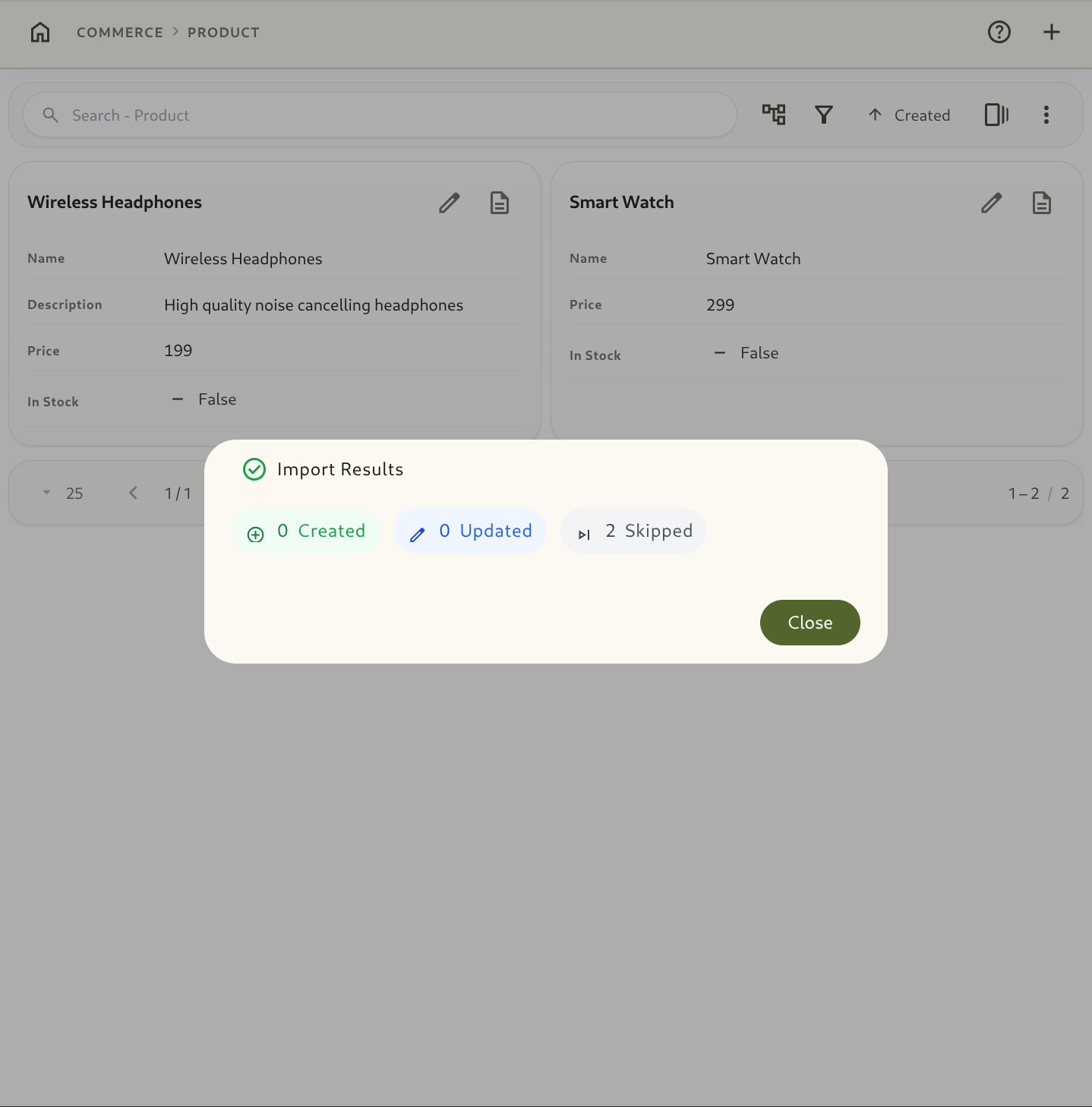
Section titled “3. Import Results & Validation Summary”Once the import completes, Omnismith provides a detailed execution summary:
- Created: Number of new entities created.
- Updated: Existing entities matched by key and updated.
- Skipped / Failed: Count of invalid rows.
- Row-Level Error Breakdown: Lists exact row numbers and validation errors (e.g. Row 14: Invalid List option ‘Pending’ for Status or Row 22: Expected number for CPU Usage).
4. Matching Rows by External Key
Section titled “4. Matching Rows by External Key”An exported CSV has two header rows: display names in the first, and canonical identifiers prefixed with # in the second — #id, #created_at, #updated_at, #external_key, then one column per attribute. The #external_key column carries each record’s External Key, the id another system uses for it.
On import, the #external_key column decides how a row is matched:
#id | #external_key | Result |
|---|---|---|
| empty | set | Updates the record holding that key, or creates one with it. |
| set | set | Updates the record with that id and writes the key to it. |
| set | empty | Updates the record with that id; its key is left unchanged. |
| empty | empty | Creates a new record. |
This lets you load a spreadsheet exported from another system — with that system’s ids in an #external_key column — and re-import it any number of times: each row lands on the same record instead of creating a duplicate. An empty #external_key cell never clears a key.