
Reference Relations
Reference attributes allow you to connect entities across different templates, creating relational links similar to foreign keys in relational databases or linked records in relational spreadsheets.
Common Real-World Use Cases
Section titled “Common Real-World Use Cases”| Source Template | Reference Field | Target Template | Example Relational Link |
|---|---|---|---|
| Support Ticket | Customer | Customer Account | Ticket #104 → ACME Corp |
| Server Node | Data Center | Facility | prod-db-01 → US-East Region |
| Order Record | Purchased Item | Product Catalog | Order #5021 → Wireless Headphones |
| Incident | Assigned Lead | Team Member | Incident #88 → Jane Doe |
1. How Reference Attributes Work
Section titled “1. How Reference Attributes Work”When you configure a Reference attribute:
- Target Template: You specify which template’s entities can be selected (e.g. Customer Account).
- Target Display Attribute: You select which field from the target template will serve as the human-readable label in selection dropdowns and summary tables (e.g. Account Name).
flowchart LR    subgraph Support Ticket Entity        T1["Ticket #104"]        T2["Status: Open"]        T3["Priority: High"]    end
    subgraph Reference Link        T1 -->|References| C1    end
    subgraph Customer Account Entity        C1["ACME Corp"]        C2["Contact: Jane Doe"]        C3["Tier: Enterprise"]    end
2. Step-by-Step Reference Setup
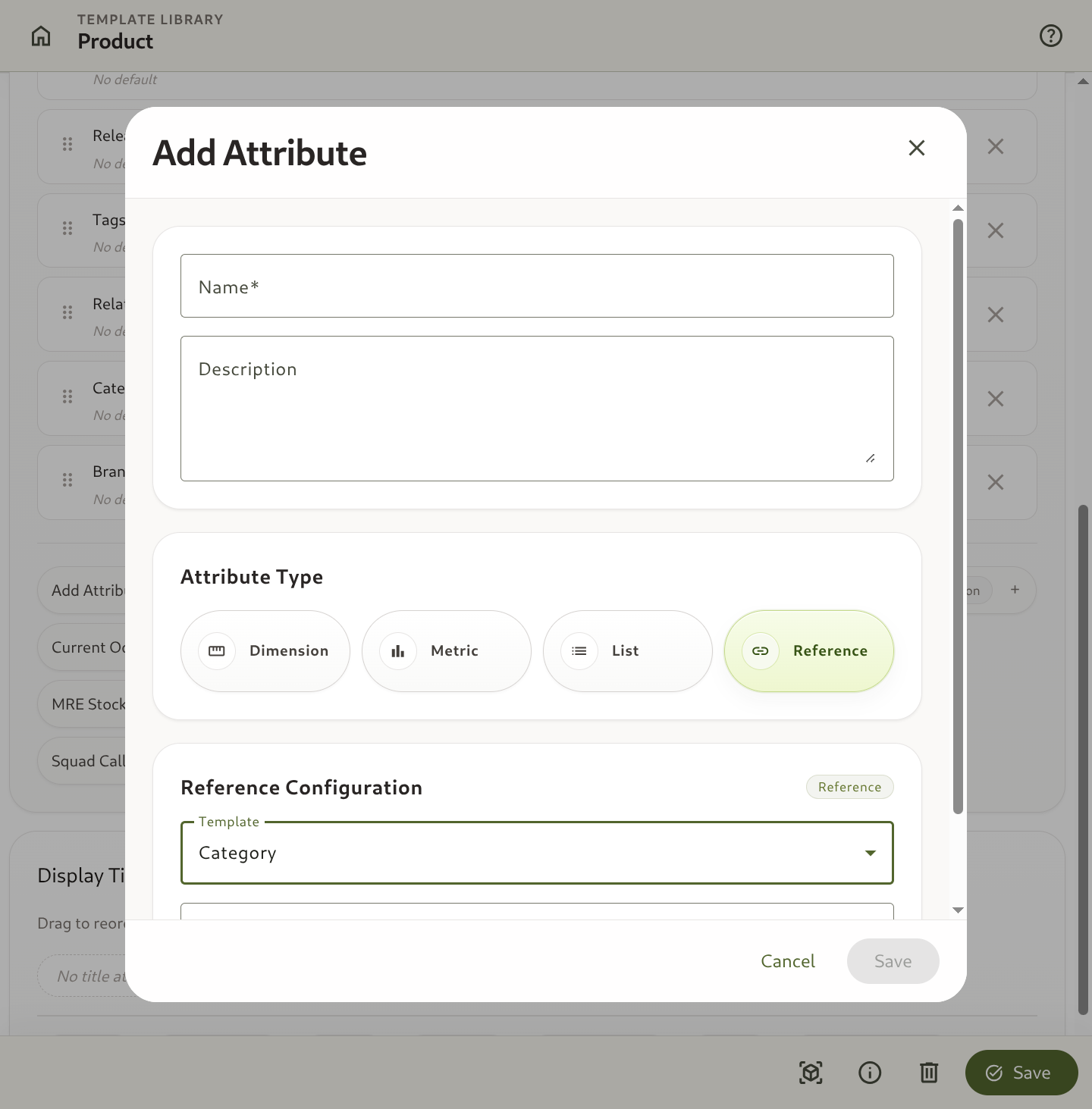
Section titled “2. Step-by-Step Reference Setup”- Navigate to Blueprints → Attribute Library.
- Click + Create Attribute.
- Set Name (e.g.
Assigned Customer). - Set Attribute Type to Reference.
- In the Reference Configuration panel:
- Select Target Template: Choose the template containing target records (e.g.,
Customer Account). - Select Target Attribute: Choose the attribute to display in dropdown lists (e.g.,
Company Name).
- Select Target Template: Choose the template containing target records (e.g.,
- Click Save Changes.
- Attach the
Assigned Customerattribute to your source template (e.g.Support Ticket).
3. Working with References in Entity Forms
Section titled “3. Working with References in Entity Forms”Once a Reference attribute is attached to a template:
- When creating or editing an entity, a searchable lookup dropdown appears populated with matching target entities.
- On the entity details page, clicking a reference link navigates directly to the target entity’s full details.
- In entity search tables, you can filter records by linked references (e.g. Show all Support Tickets where Customer = ACME Corp).